



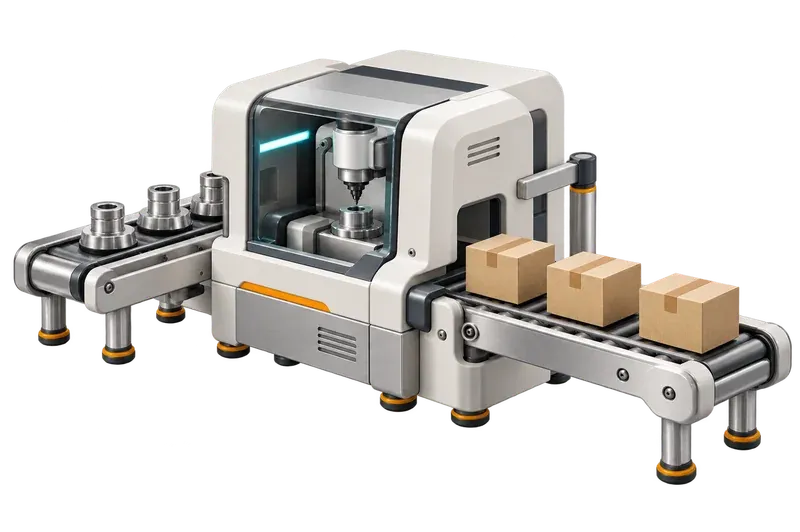
Manufacturing
Set up products and dealer-specific prices, then manage orders in one flow.
Explore the Products moduleDon't miss our launch offer and take advantage of our introductory pricing.
Let us contact youBuild stronger ties with your dealers, simplify your sales processes and raise your operational efficiency.
Sample screen; the data is illustrative.
Keep your products under full control with variants, prices, stock and technical details.
Manage your dealers, their users and their permissions with ease.
Track orders from every channel and manage approval, preparation and shipment.
Grow sales by putting the right offer in front of the right customer.
Manage stock, warehouses and shipments from one place.
Strengthen communication with your dealers through announcements, surveys, tasks and support requests.
From your ERP to WhatsApp, from payments to shipping, Bayinext works with the systems you already use.
Sync product, stock, account and order data with your ERP; never enter the same information twice.
Let your dealers reach order, stock and account information over WhatsApp.
Analyse your dealer data with AI, ask your question and get insight instantly.
Take online payments and track collections together with orders.
Create shipments with carriers and track delivery from start to finish.
B2B SOLUTIONS BY SECTOR
Sales, pricing, stock and dealer management work differently in every sector. Instead of fitting you into a ready-made system, Bayinext lets you shape your B2B processes around your own business model.
Set up products and dealer-specific prices, then manage orders in one flow.
Explore the Products module
Track stock, shipments and delivery details alongside each order.
Explore the Shipments and Returns module
Bring orders from stores and dealers into one organized workflow.
Explore the Orders module
View and manage product, stock and order records by dealer.
Explore the Stock module
Track products and orders across your dealer network with warehouse stock.
Explore the Warehouse module
Offer vehicle products at dealer-specific prices and track orders in one place.
Explore the Products module
Manage your parts catalog and stock alongside dealer orders.
Explore the Stock module
Bring collections and dealer-specific prices into an organized product catalog.
Explore the Products module
Track material ranges, warehouse stock and dealer orders together.
Explore the Warehouse module
Manage your electronics catalog with dealer prices and orders.
Explore the Products module
Present technology products in the dealer portal and track orders.
Explore the Dealer Portal module
Organize product ranges in the catalog and collect dealer orders in one place.
Explore the Products module
Showcase decor collections and manage orders from dealers.
Explore the Orders moduleYour dealers see products, prices and stock according to the rules you set; they place orders, track progress and find the information they need in the portal. You manage the entire dealer operation from a single panel.
Sample screen; the data is illustrative.
Not every dealer has to see the same price. Define different price lists and discounts by dealer group, customer, product or campaign. Each dealer sees only the price they are authorized for.
You do not have to show dealers your actual ERP stock as it is. Decide the quantity open for sale, and manage stock visibility and order limits.
Dealers order from their own portal. You approve and manage the preparation and shipment stages. Dealers track which stage their order is at themselves.
Manage account information, announcements, surveys, addresses and support processes through the portal. Your dealers reach the information they need on their own.
Which dealer sees what, uses which price and can perform which action? Every permission and rule is entirely under your control.
THE JOURNEY OF AN ORDER
Below we follow a single order line of 100 units from start to finish. The columns on the right are the quantities you see on the order line in the management panel; the value that changes at each step is highlighted.
Example order line
The dealer builds a cart while seeing their assigned net prices excluding VAT and the stock information you allow. They choose a delivery address, optionally add an order note and place the order. Until it is approved, the dealer can cancel the order or change its delivery address.
Dealer portal moduleIf you have set up an automation that runs when an order is created, a matching order lands in the inbox of the user, role, department or sales representative you chose. The approver decides and can leave a comment; until the flow finishes, the order cannot be approved directly.
When the order is approved in the panel, stock is reserved; if there is not enough, the panel warns you. Even if the same approval request is sent twice, stock is not reserved twice. Cancelling an order releases its reservation.
Orders moduleA shipment is created from the approved order’s lines with the quantity you need. Carrier, tracking number, vehicle plate and waybill details are entered on the shipment record. When the shipment is finalized, stock and reservations are updated together.
Shipments moduleIf the remaining 40 units will not be shipped, they are closed per line or all at once. The closed quantity’s reservation is released and the shipped quantity does not change. In the portal’s order detail, the dealer sees the shipped, cancelled and remaining quantity of each line.
Orders moduleWhen goods come back, a return record is created from the shipped lines and the items are posted as stock receipts into the return warehouse you choose.
Everything a dealer sees in the portal comes from rules your central team defines in the management panel.
Bayinext fits manufacturers and distributors that sell through a dealer network, set different prices and access conditions by dealer, and need a recorded process from order to shipment. Dealers work in their own portal; central teams work in the management panel.
Clear answers to the practical questions teams ask before choosing a system.
Ask another questionIt includes both. The manufacturer or distributor team manages products, prices, orders and operations in the management panel. Dealers sign in to a separate portal to browse products and place orders.
An order from the portal arrives as “Pending approval”. Stock is reserved when the order is approved in the management panel; if there is not enough, the panel warns you. Cancelling an order releases its reservation.
Yes. A shipment is created from the approved order’s lines with the quantity you need. When the remainder that will not ship is closed, its reservation is released; the shipped quantity does not change.
Yes. Price lists are assigned to an individual customer or a customer group and include a currency, validity dates, list prices and discount percentages. In the portal, the dealer sees their assigned price as a net price excluding VAT.
You switch on B2B portal access in the customer record and add dealer users on its Users tab. The dealer signs in with a dealer code, username and password. There is no self-registration in the portal; you manage access.
No. The management panel supports role-based screen and action permissions and form field rules. Access to branches and warehouses can also be restricted per user.
In a short demo, we can walk from product and pricing setup to a dealer order, approval and shipment.